National Geographic Photo of the Day

Showing posts with label HD. Show all posts

Sunday, August 16, 2009

Tips for a PS3 Noob

When I first got a PS3, there were a few things I wanted to check out on it but 'twas a while before I got a hang of it. Perhaps listing those things out here will help someone who has just bought the black beauty.


  • Checking HDD space

No, you cannot browse the PS3's hard drive like you would on MS Windows' explorer. Here everything is grouped according to the type of data - Music, Video, Photos etc.

So if you want to do a quick check on how much space you have left just head over to Settings --> System Settings ---> System Information.

And the hard drive on any PS3 can be replaced with a regular 2.5 inch (laptop) SATA hard drive at 5400rpm, if you wish to upgrade it that is.

  • Playing Media from a USB Drive

I initially tried plugging in a 16gb pen drive with videos on it and the PS3 wouldn't detect it. I thought "Maybe the pen drive ain't so good". Later I found that the PS3 can handle only FAT32 formatted devices. So format every drive you intend to use with the PS3 as FAT32. This will also limit file sizes to 4gb.

Furthermore unless you put video files in a VIDEO folder, or music under a MUSIC folder on the drive, the console won't show you the files directly. What you have to do (as an example I'll use divx files under the root directory) is go to the video section, scroll down to your drive, then press triangle and choose "Display all". This will show you all the compatible files that you can open.

The same procedure is applicable for opening music or photos.

And you would do well to use a USB 2.0 drive if you want to play HD videos off it.


  • Copying files

You might notice that while downloading from the PSN store you'll be able to allow a download to go on in the background. This cannot be done while you copy data between the PS3's hard disk and an external disk. Once you set it to copy a file, it will not let you do any other operation until either the files have been copied or the operation has been canceled. Background downloads will still continue while you're copying though.


  • Changing OS

You can install Linux on your PS3, a quick google search will get you all the info you need. But note one important point before you even consider changing your OS to Linux --- You will lose all your data (apart from what you've backed up) and you'll have to download add-ons and updates for games, game demos etc. all over again.


  • Changing between TVs

Look at this scenario. You've got the PS3 connected to a HDTV (an LCD or Plasma) via HDMI. One fine day you take it along with you on a trip and try connecting it to a Standard Definition TV which has composite inputs. What you'll get is a blank screen even after powering on the PS3 and you'll be clueless as to the solution.

This is pretty simple to set right. From standby mode (that is with the red light on) just hold the power button 4-5 seconds until you hear the second beep. Then release the power button and the console will switch itself on and reset its video and audio output settings. This way you can set your PS3 up to work with the new television. Don't worry this won't damage your PS3 in any way or reset any other settings or saves.


  • Audio output - 2.0, 5.1, 7.1

The PS3 can only output 2.0 audio from the composite out port. The optical audio output will again only support 5.1 audio out, whereas 7.1 will be available only when you use a hyper-expensive receiver which supports HDMI audio input and can pass the HDMI video out without doing anything to it.

Now there'll be people saying "So what, 5.1 is good enough for me, I can get DTS-HD or Dolby TrueHD tracks in 5.1 from a Bluray via my optical input-equipped speakers!". Wrong.


LPCM 5.1 or DTS-HD or Dolby TrueHD has too much data to be sent via an optical cable. The only tracks you'll end up getting via optical out will be normal DD 5.1 or DTS, in other words DVD-Quality surround audio.

Here's a complete audio compatibility chart. The source of this chart is edepot.com:

PS3 CompatiblityBitstream (HDMI)LPCM (HDMI)Bitstream (TOSLINK)LPCM (TOSLINK)AV Multi
Linear PCM 7.1YesYesNoNoYes (Stereo)
Dolby TrueHD 7.1NoYesNoYes (Stereo 44.1kHz)Yes (Stereo)
Dolby TrueHD 5.1NoYesNoYes (Stereo 44.1kHz)Yes (Stereo)
Dolby Digital PlusYesYesYesYes (Stereo)Yes (Stereo)
Dolby DigitalYesYesYesYes (Stereo)Yes (Stereo)
dts-HD MA (7.1)NoYes (5.1)NoYes (Stereo)Yes (Stereo)
dts-HD HRA (7.1)NoYesNoYes (Stereo)Yes (Stereo)
dts Digital SurroundYesYesYesYes (Stereo)Yes (Stereo)
SA-CD 5.1NoYes (176kHz)NoYes (Stereo 44.1kHz)Yes (Stereo)
SA-CD StereoNoYes (176kHz)Yes (Stereo 44.1kHz)Yes (Stereo 44.1kHz)Yes (176kHz)


If you're wondering what TOSLINK is, its nothing but Optical.

Friday, July 24, 2009

Guide: Demuxing and Remuxing MKV for the PS3

I had purchased a 160gb PS3 a month back, not just for gaming, but for its media-related features as well. Though I do stream (via wifi or ethernet) a bit to the Playstation 3, I tend to load its hard drive with High Definition (720p and 1080p) videos which, initially, were in MKV and WMV-HD formats.


Now the PS3 will not play files in the MKV Container as is. So don't try putting them directly on the HDD. I'd like to share my experience with muxing and demuxing these files and WMVs for the benefit of others in the similar situation.

First, MKVs.

As an example, I will be using an MKV with x264 video and DTS 5.1 audio. Transcoding to a different codec might make this file more compatible with the PS3, but the problem is any sort of transcoding operation WILL decrease video quality. So all we're aiming to do is demux and remux, and convert the audio alone. And I'm not going to deal with subtitles either.
Applications required:
  • MKVToolnix (MKV-extract GUI in particular)
  • WinFF
  • TsMuxer GUI


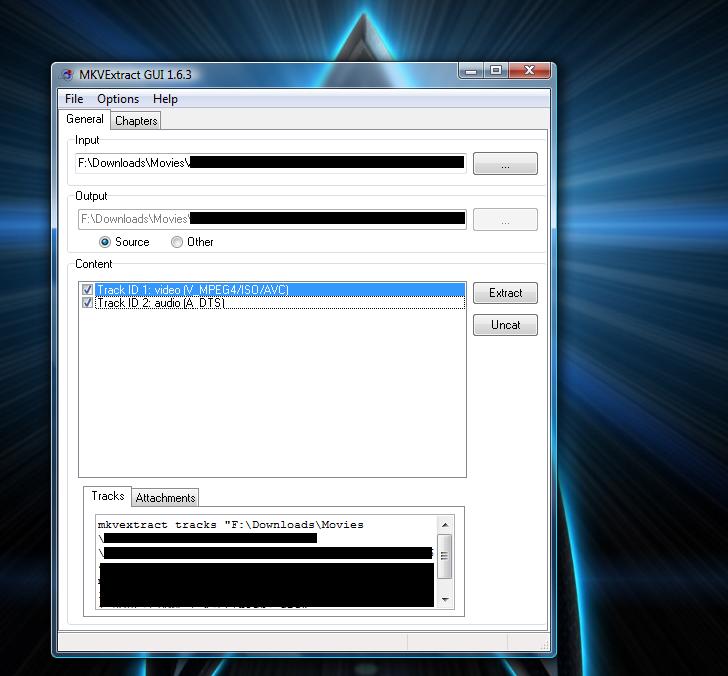
Load up your MKV file in MKV Extract GUI. The list of tracks contained in the MKV is displayed. Here select just the MPEG4/ISO/AVC and DTS tracks (check the boxes) and hit extract. The destination directory will contain the output in the form of a .264 and .dts file. The .dts file is the audio portion and I downmix that to 2.0 AC3 using WinFF. Open up WinFF and drag and drop the .dts file into it. Select Audio from the drop down menu and AC3 384kbps from the subcategory. The end result after you convert this will be a .ac3 file.

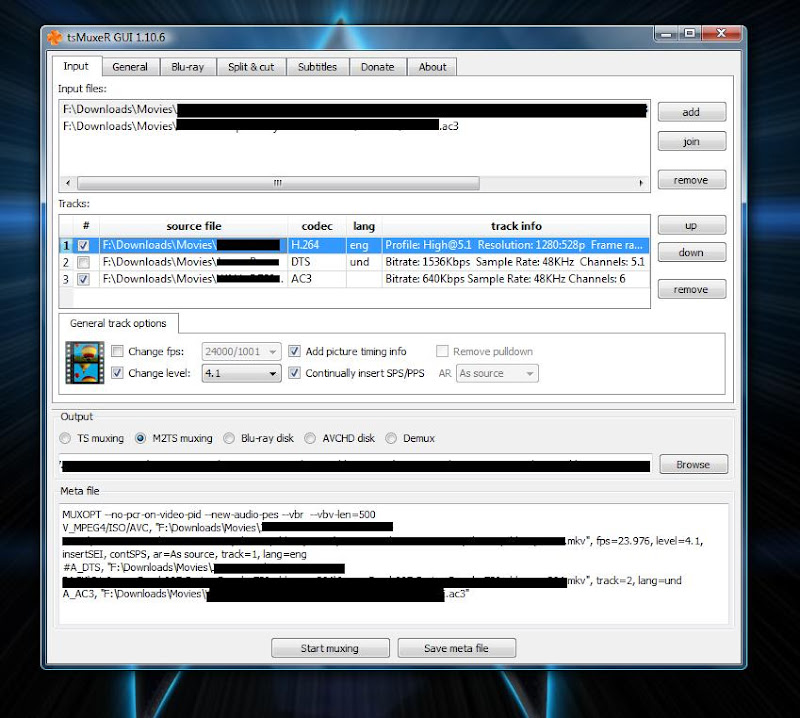
We now have all we need to make the m2ts output that will play on the PS3. Start up TsMuxer GUI. Drag and drop both the AC3 and the X264 parts into TsMuxer. There is one alternative way to do this too, without extracting the video (x264) from the mkv. TsMuxer can directly read the MKV and it will list the DTS track as well as the video track. Leave the video selected, uncheck the DTS audio and add the AC3 audio to the list of inputs. Check the box next to the AC3 track too.


Click on the track that says H.264. If the number next to "Change level" is greater than 4.1, enable the option "Change level" and choose 4.1 from the drop down menu. Else it won't play on the console. Choose "M2TS muxing" as the output option. Also, if your video is greater than 4gb, you won't be able to put it on a FAT32 formatted drive (whether it be a pen drive or an external HDD). And the PS3 cannot read NTFS formatted media.

So use the split and cut tab to choose the "Split by size" option and enter a value less than 4gb. Then go back to the Input tab and hit start muxing. Your output file will be a .m2ts file (or two or three of them if you had a large video to begin with). Copy these to the FAT32 formatted media, and enjoy HD awesomeness on your LCD or Plasma via the black box (assuming you have a HD ready or Full HD screen that is).

I'll post on how to rectify the WMV-HD video for playback on the PS3 in another post.

Till then, I hope this helps. And do note that the tools mentioned are all freely downloadable.


UPDATE: Please note that I'm downmixing 5.1 DTS to AC3 2.0 in the above example. However if you wish to convert the DTS 5.1 to AC3 5.1, just Popcorn MKV AudioConverter (links to tutorial and download), its a free utility. Then use the converted AC3 5.1 audio equipped MKV directly in TsMuxer.

The reason I'm not directly using 5.1 DTS is because the latest version of TsMuxer gives me an output with only video when I use the MKV directly with DTS. Might just be some problem with my computer and TsMuxer not getting along well but thought I'd suggest an alternate.

Friday, January 23, 2009

High-Def Hoopla (for the non-geeky)

Doing The 1080p

There was once a time long long ago when a person would go to a store selling TVs and the only thing they'd have to worry about would have been the size - 21 inch, 25, 29 ... and maybe whether the TV has a Picture-in-Picture option (for the haggled man of the house :-P )

That's all in the past now. These days everyone's into HD (or high-definition) televisions. The rage for LCDs and Plasma sets continues unabated. Open the news-papers around festival time and you'll catch a hundred ads proclaiming that you need to ditch your old CRT TV set get yourself a new Plasma or LCD. Sadly, its not that simple. When buying such a new set there's a thousand things that can go wrong with selection. But what I'm talking about here is the way the term "HD ready" is perceived by the common man. The mere term HD evokes thoughts of a temporary escape to a visual wonderland. Whereas HD-ready isn't quite the same as full HD.

When a TV is marketed as HD-ready in India, it most likely has a resolution of 1366x768. This is NOT a proper High-Definition resolution. They will most certainly accept HD input signals, but they will not display it optimally. What one should really go for is Full-HD. Full-HD displays are capable of showing images at 1080p resolutions.

The resolutions available in this category are 720p, 1080i, and 1080p.
720p = 1280×720 resolution = Progressive scanning
1080i = 1920 x 1080 resolution = Interlaced scanning
1080p = 1920×1080 resolution = Progressive scanning

Interlaced video has been around as long as there have been televisions with cathode ray tubes (CRTs). Analog televisions use interlaced video, and we're so used to it that it's not something that we dwell upon. High definition video can be either interlaced or progressively scanned.
Progressive scan means the lines that make up the TV picture are displayed all at once in sequence. Interlaced means the lines that make up the picture on your TV screen are drawn in an alternating fashion. For example, if 480 lines are present in a picture, then the first frame has 240 lines and when the next frame is drawn, the other 240 lines are shown. The problem with interlacing technology is this alternating line drawing tends to cause the eyes to see a flicker. Once again, HD formats need a proper input from DVD and BluRay players. In general, HMDI is the connection of choice, though component cables can transfer HD resolutions too.


A high-definition display is however of no use without a proper source. High-definition image sources include terrestrial broadcast, direct broadcast satellite, digital cable, high definition discs, internet downloads and the latest generation of video game consoles. The Sony Playstation 3 and the Xbox 360 are both game consoles capable of outputting HD content. The PS3 even has a built-in BluRay player.

High-Def is all the rage now with even the adult film industry taking note of it. Actress Jesse Jane is considering plastic surgery to take care of some imperfections. She is having her breast implants redone because they currently look odd in high definition. “I’m having my breasts redone because of HD,” she said. Note: I don't know anything about the adult film industry. I'm just saying this cos I read it somewhere. :D

Oh, speaking about BluRay Discs, they are a type of optical storage medium of the same size as a DVD. A DVD uses a red (650nm wavelength laser) and can store either 4.7gb or 8.5gb (dual layer DVDs). However, BluRays bring a whole new game - they can store upto 50gb on a dual layer BluRay disc. This is thanks to the blue laser used, having a shorter wavelength of 405 nano metre. There used to be some mild competition from a rival format called HD-DVD but those are all but extinct now, thanks to Toshiba withdrawing its support for HD-DVDs.

In India, we don't have any broadcaster using HD signals for regular television channels yet. Though most of the direct-to-home service providers are making the right noises. Besides, the Indian government has taken the decision to broadcast the 2010 commonwealth games ONLY USING HDTV TECHNOLOGY. So no commonwealth for the analog crowd.....

Not to mention, the USA has given its broadcasters a deadline of February 19th to switch over to digital signals. Why should you be concerned you ask? Simple, if you live in the US, starting 12 a.m. local time on Sunday, February 17, 2009, the only show to watch using your analog TV will be reruns of static :D . There is hope however that President Obama could possibly delay the transition.

I bet the digerati are jumping with joy!